A clear timer.
More room to focus.

A focus and break timer for iPhone and Apple Watch. Check the countdown on your wrist or keep it in view on your desk. One purchase. No subscription.

Coming to the App StorePlanned US $6.99 · one-timeiPhone + Apple Watch
See how it works What's included

How a session goes

Begin, stay with it,
let the break start itself.

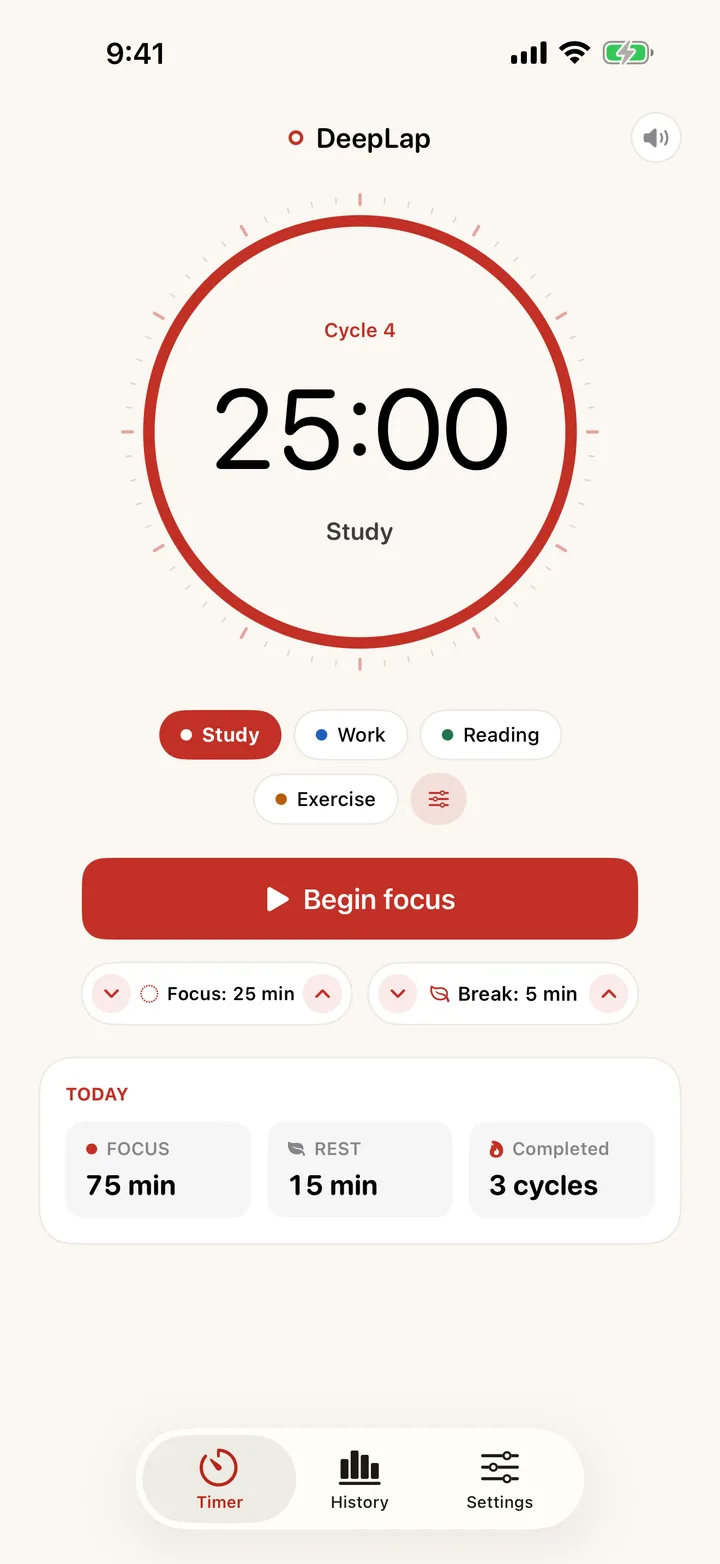
Default cycle: 25 minutes of focus, 5 of break. Adjust the next cycle right on the timer without touching your defaults.

Pick a category and begin

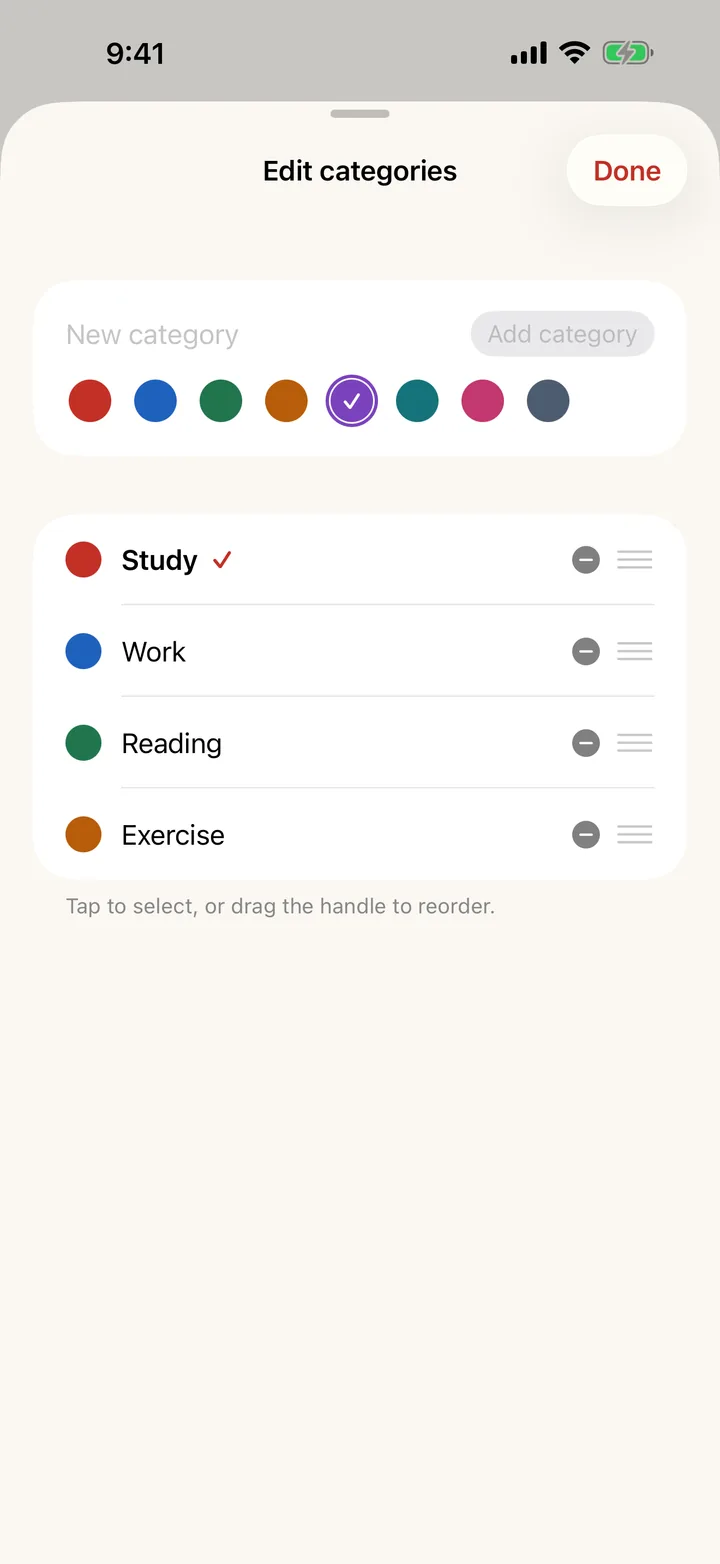
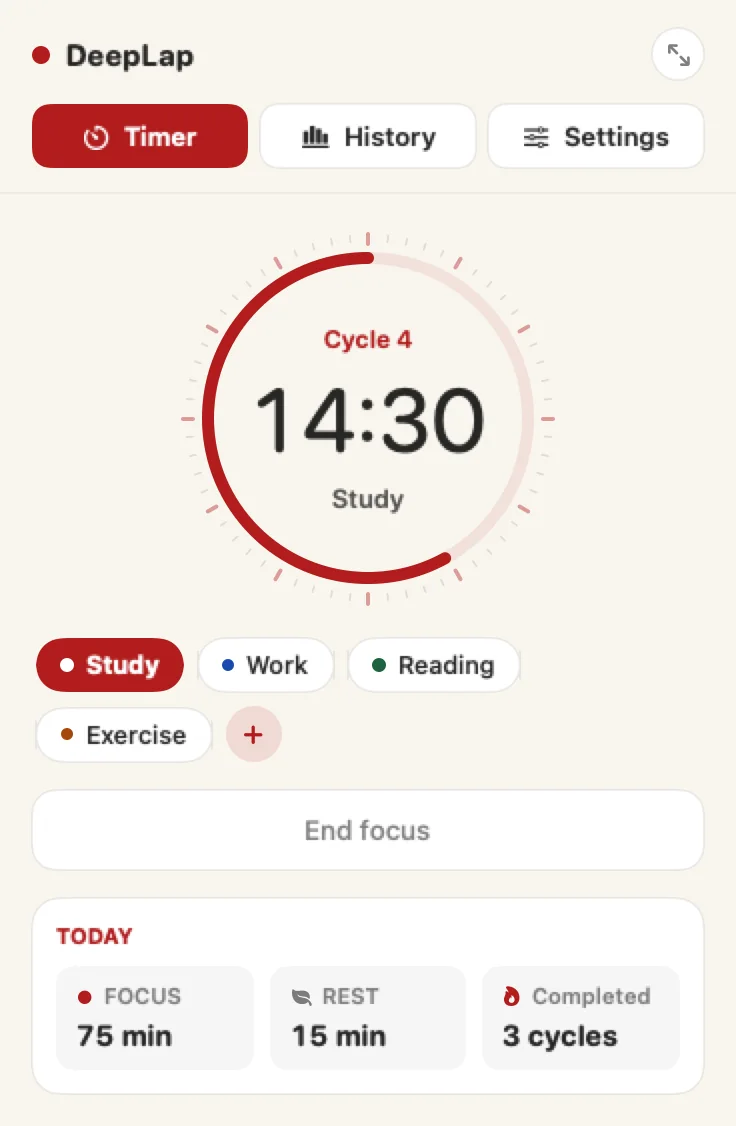
Study, Work, Reading, Exercise or your own, up to 20. The dial takes the category's color so sessions are told apart at a glance.

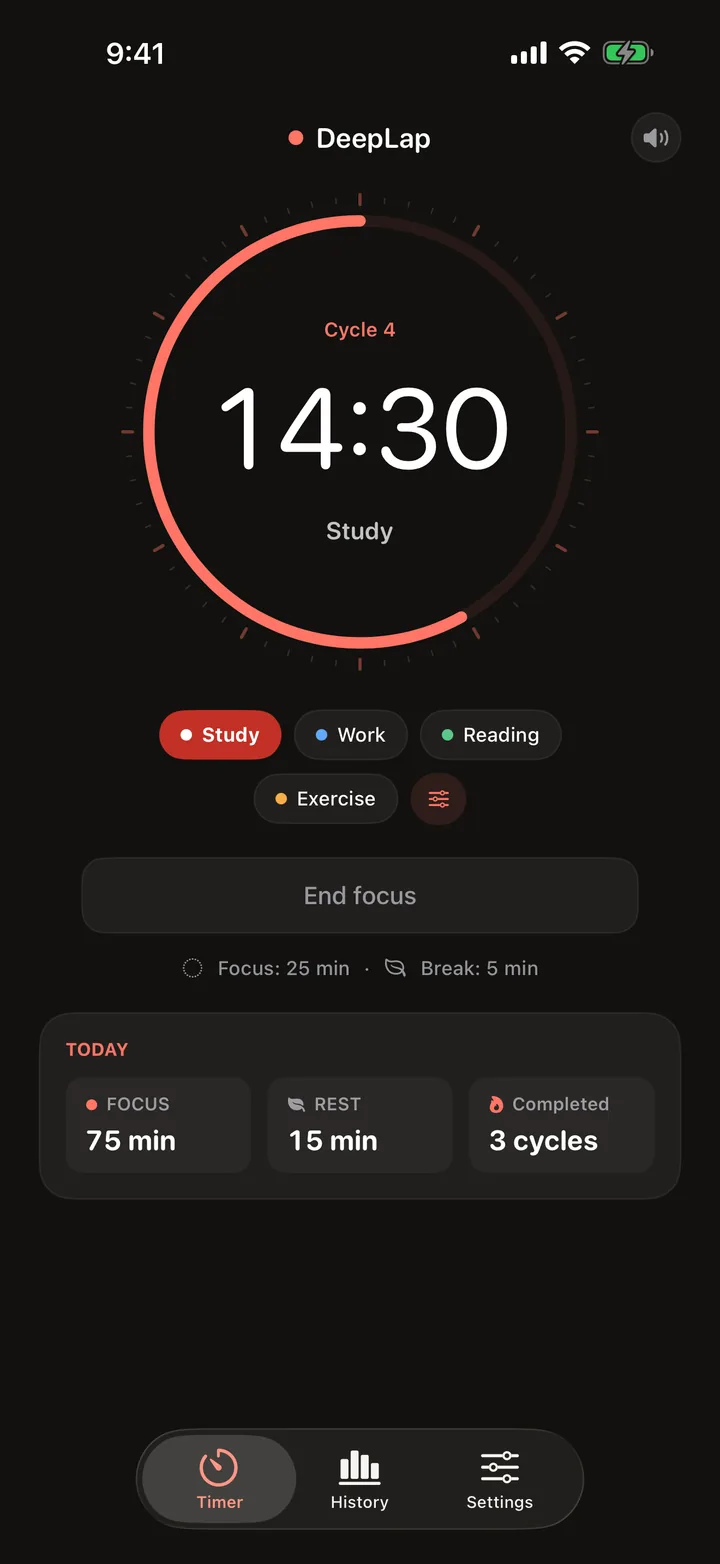
Focus runs without a pause button

On purpose. If you must stop after at least one minute, DeepLap saves the time so far as a partial record instead of a completed cycle.

The break starts at the deadline

An alarm tells you focus is over. Breaks can be paused or ended early. Stopping the alarm only silences it; the break is already counting.

Apple Watch

Check your wrist.
Stay with your task.

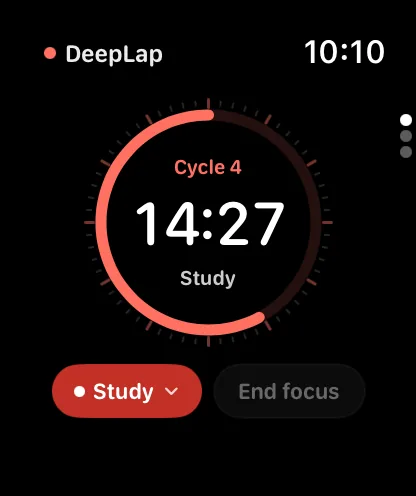
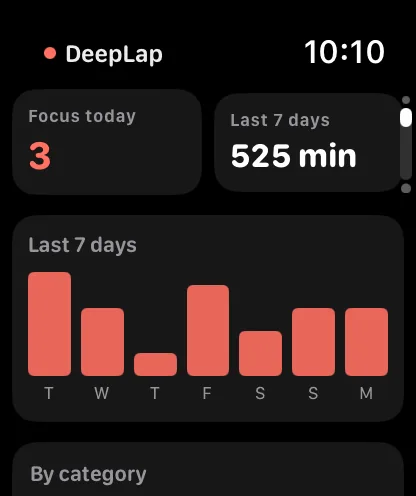
The Watch app shows the same countdown as the iPhone and can start a session on its own. The live countdown also sits on the iPhone Lock Screen and in the Dynamic Island (iOS 18 or later), and in the Watch Smart Stack.

  • Start from the Watch, leave the phone in the bagSessions started while the iPhone is out of reach merge into your history when the devices reconnect.
  • One sound switch for every deviceMute on the Watch and the iPhone follows, and the other way round.
  • Needs an iPhoneDeepLap for Apple Watch is a companion app, included with the iPhone purchase.
Apple Watch timer with End focus button
Apple Watch history with today's cycles and a 12-week grid

Landscape desk timer

Give focus a place
on your desk.

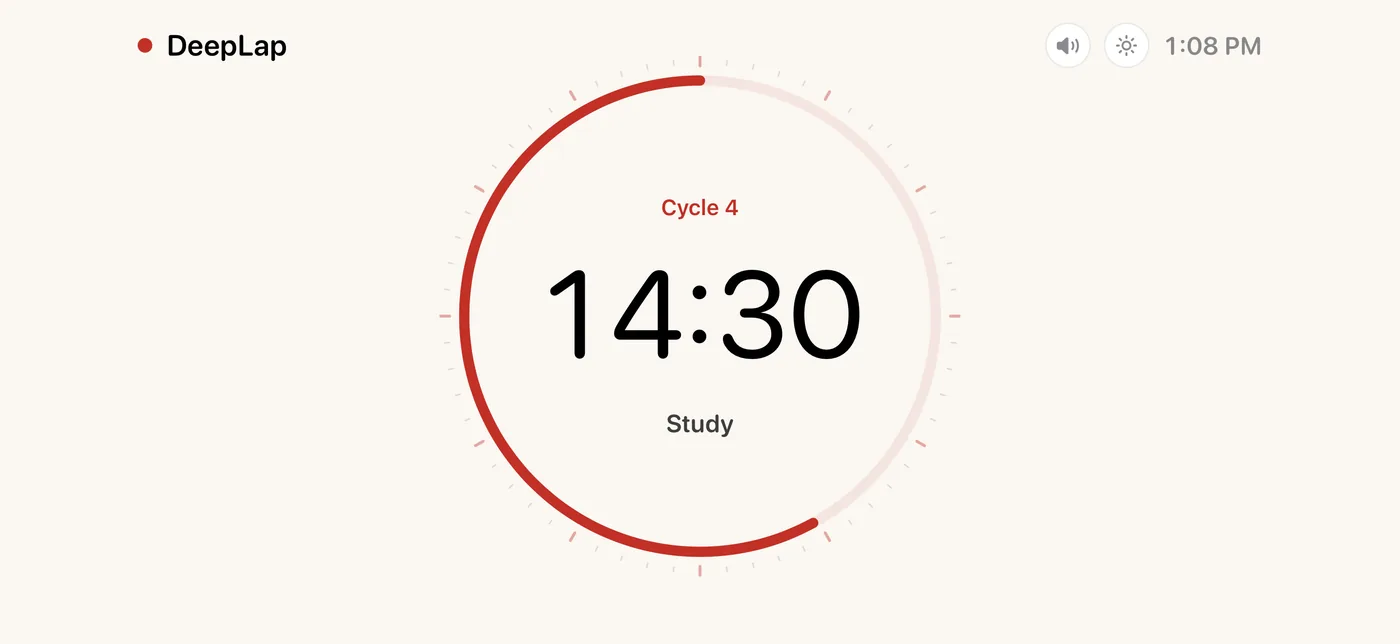
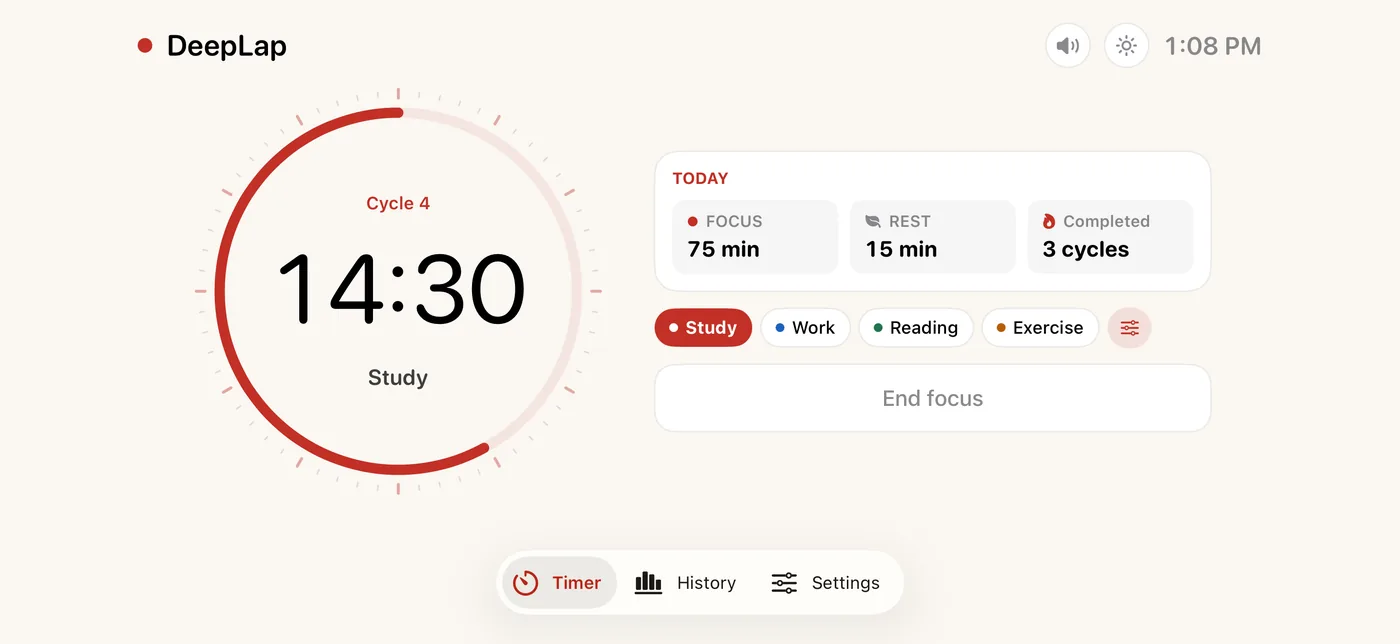
Turn the iPhone sideways on a stand and the timer becomes a full-screen dial with the clock. Tap once for the controls and today's summary; they fade back after seven seconds.

  • Categories color everythingEight colors across the dial, status dot and buttons, so Study and Work never look alike.
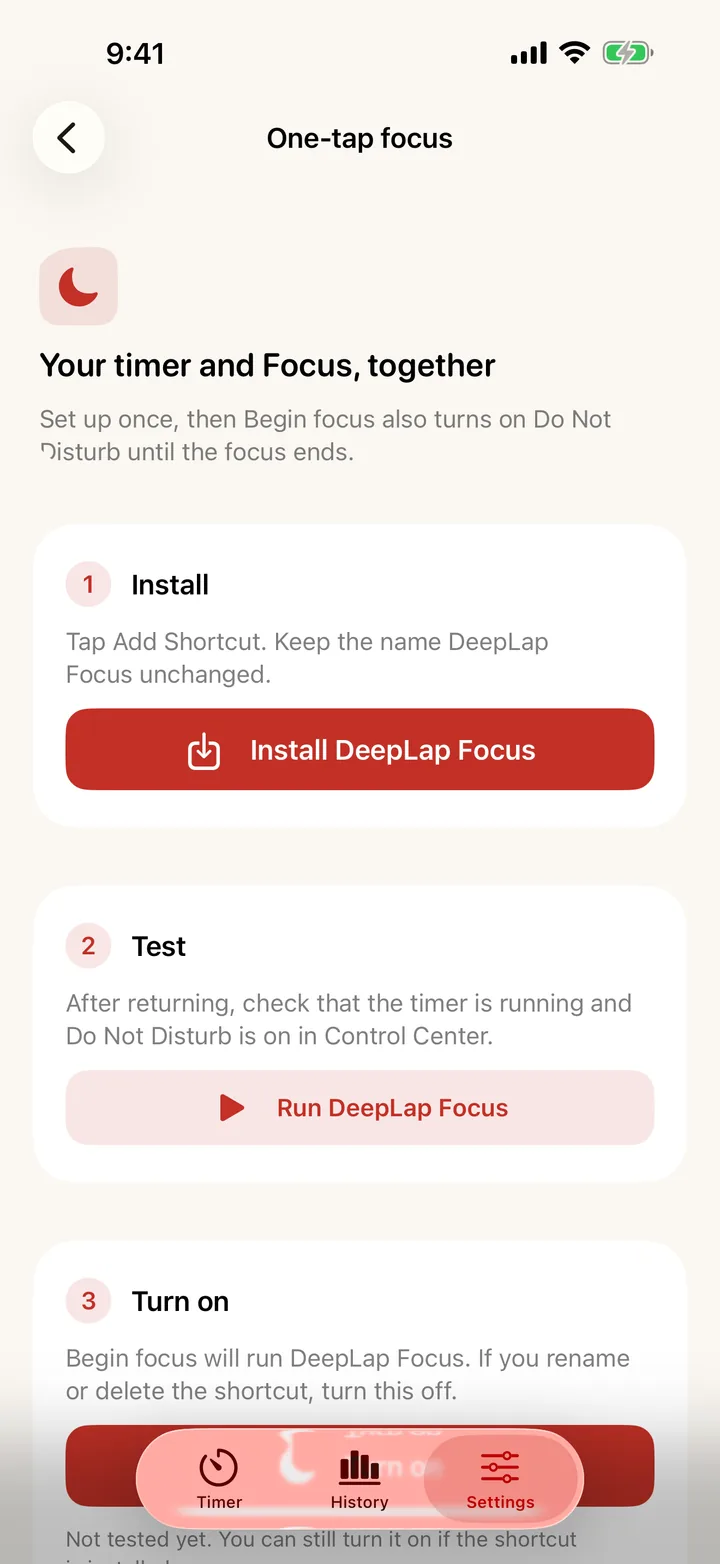
  • Optional: Do Not Disturb in two tapsInstall the one-time "DeepLap Focus" shortcut and assign it to Back Tap or the Action Button. Starting a focus turns Do Not Disturb on until the deadline; ending early turns it off. See Focus shortcut.
Category editor with eight color choices
Shortcut guide in Settings
Landscape timer on a desk stand: a large dial and the clock, nothing elseWith the control panel open: today's summary, category chips and End focus

Hover or tap the phone: the control panel slides out and fades back after seven seconds, as in the app.

Quiet by default

Loud only when you ask.

The speaker button on the timer turns alarm sound off on every device at once. Alerts then show and vibrate, without sound. With sound on, iOS 26 rings end-of-session alarms through Silent Mode and Focus, so a locked phone in a bag still gets through.

  • Eight alarm tones, previewed through your headphonesBell, piano, glass chimes and more, all made for this app. Preview before you pick.
  • Details for every iOS versionHow alarms behave on iOS 26 versus 17–18, and on the Watch, is spelled out in Alarms & sound.
A focus in progress in dark mode with 14:30 left

Mac · coming later

On the Mac, it lives
in the menu bar.

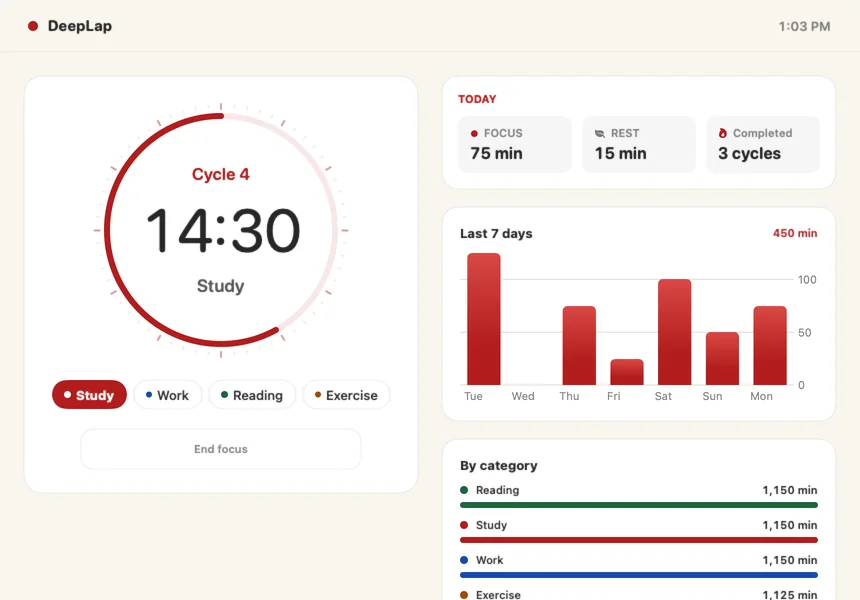
The same timer, categories and history, one click from the menu bar. The countdown sits next to the clock; a dashboard window opens when you want the charts. Sessions and settings follow your iPhone through iCloud.

DeepLap
DeepLap dashboard window on Mac with the dial, a 7-day chart and time by category
  • Start on the Mac, see it on your wristTimer state, settings and recent history sync through iCloud, the same way as between iPhone and Watch.
  • Separate purchase, laterThe Mac app is not part of the iPhone purchase. It ships after the iPhone and Watch apps, with its own price.

History

See where
your time went.

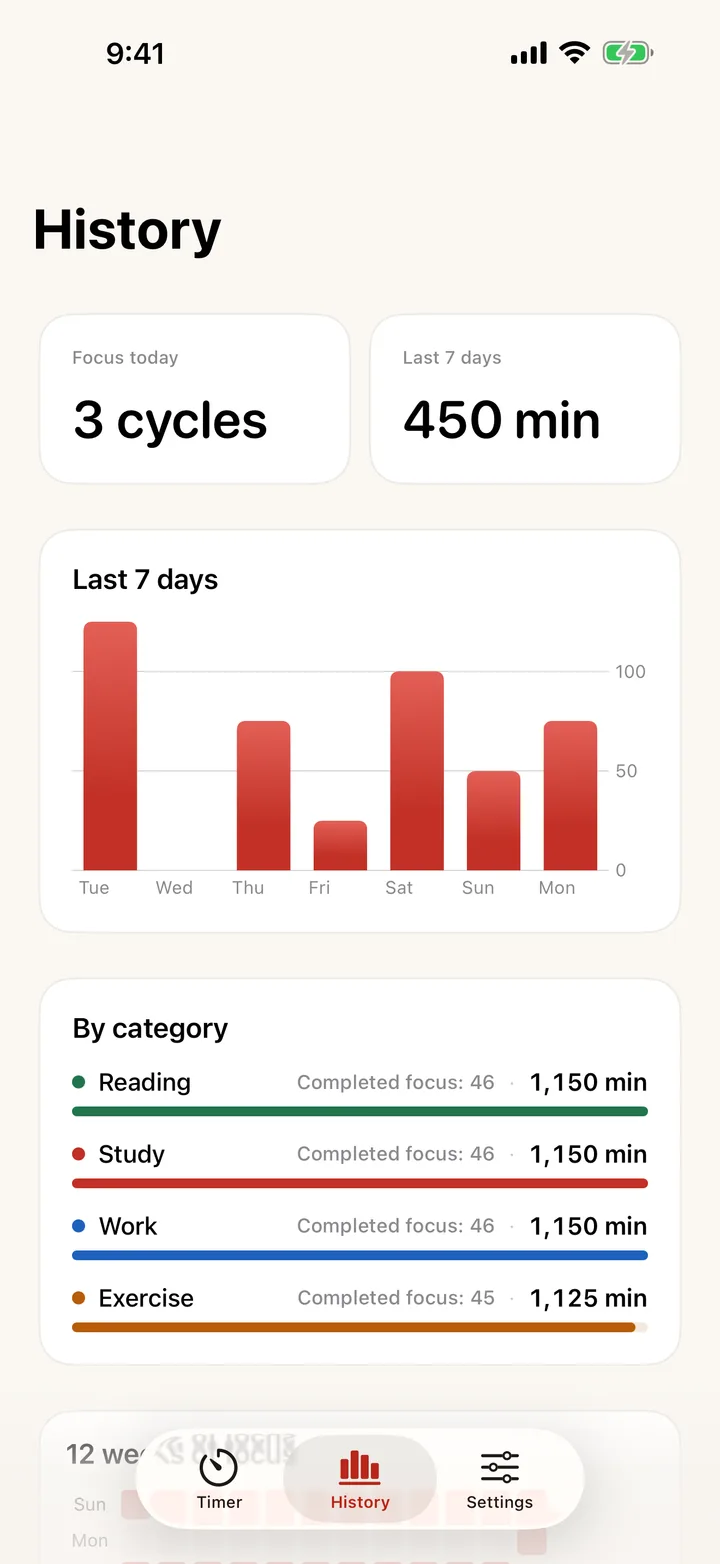
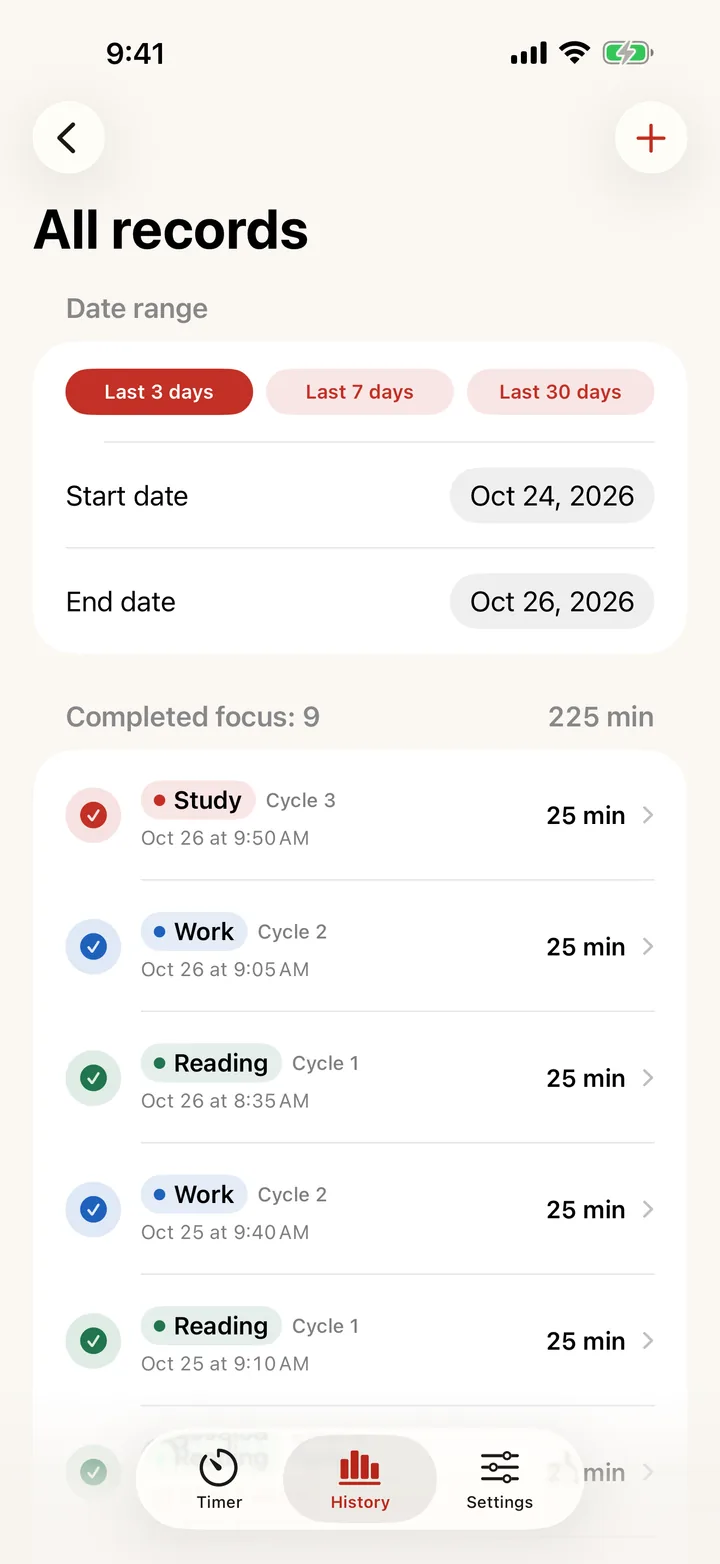
A 7-day bar chart, time by category, and a 12-week focus grid. Browse recent sessions or filter thousands of records by any date range.

  • Your records stay yoursStored on your devices. Export or import a JSON backup from Settings whenever you change phones.
  • Recent history syncs through iCloudTimer state, settings and the latest 240 records follow you across your own devices. Older records stay where they were recorded, or travel in the backup file.
History overview with a weekly chart and category breakdown
All records filtered by a custom date range

Before you buy

One purchase.
Know what's included.

US $6.99
Planned one-time price. Korea ₩9,900. The final price in your country is shown on the App Store.
  • DeepLap for iPhone and DeepLap for Apple Watch
  • Lock Screen, Dynamic Island and Smart Stack countdown
  • iCloud sync of recent history between your devices
  • All future updates to these apps
No subscription. No in-app purchases. No account. No ads or tracking.
Not included: a Mac app. One may follow later as a separate purchase.
Requires iOS 17 or later; the Apple Watch app requires watchOS 10 or later.
Will it ring in a library?

Only if you let it. The speaker button on the timer silences alarm sound on every device; alerts then appear and vibrate. With sound on, iOS 26 uses system alarms that ring through Silent Mode and Focus. On iOS 17–18 notifications follow the Silent switch.

Why can't I pause a focus?

Pausing turns one session into several. DeepLap keeps focus unbroken; if you stop after at least one minute you can save the time so far as a partial record. Breaks can be paused freely.

Can I use only the Apple Watch?

The Watch app needs an iPhone with DeepLap installed. Once paired, you can start and end sessions from the Watch while the iPhone is out of reach; they merge when reconnected.

Where is my data, and can I move it?

On your devices. iCloud sync carries timer state, settings and the latest 240 records between your own devices through Apple's servers. A JSON backup from Settings moves everything. See the privacy policy.

Refunds?

Purchases are handled by Apple. You can request a refund at reportaproblem.apple.com; Apple decides. If something does not work, write to us first, we would rather fix it.

Support

Help when you need it.

Email smallmodules@gmail.com. Please include your iPhone or Apple Watch model, the iOS / watchOS version, and what happened.

You can attach diagnostics from Settings → About and support → Share diagnostics. Diagnostics describe timer state and timing; they never include your categories, notes, or individual records.

Alarms & sound

  • The break starts at the focus deadline. Stopping an alarm only silences it; the break may already be running. Ending a break keeps the completed focus record.
  • The speaker button on the timer screen turns alarm sound on or off for all your devices at once. With sound off, alerts still appear and vibrate (if the haptic for that phase is on) but play no sound.
  • On iOS 26, with sound on, end-of-session alarms are system alarms and ring through Silent Mode and Focus. On iOS 17–18, DeepLap uses Time Sensitive notifications: they break through Focus but follow the Silent switch and your notification settings.
  • Apple Watch uses watchOS notification sounds and follows the Watch's Silent Mode (haptics continue).
  • Sound previews in Settings do not verify locked-screen alarm delivery. Try a short one-minute focus once.

Focus shortcut (Do Not Disturb)

  • iOS does not let apps change Focus directly, so Do Not Disturb is controlled by one shortcut you install once: DeepLap Focus. Keep its name unchanged.
  • Starting a focus runs it and turns Do Not Disturb on until the focus deadline. Ending a session early runs the same shortcut with the input "end", which turns Do Not Disturb off. A previously active Focus mode is not restored.
  • You can choose another Focus mode by editing both Set Focus actions inside the shortcut.

Privacy

How DeepLap stores and syncs your data, what the support email keeps, and what this website does: read the privacy policy.